

From Notes to Narrative: Mastering HyNote’s New AI Presentation Publish Hub
Turning complex meeting notes into a professional slide deck used to be the "second half" of the workday. Google’s NotebookLM recently highlighted how AI can help organize deck content, but HyNote is closing the loop.
With our new Create Presentation interface, you can move from a raw notebook to a polished, visually consistent deck in under 60 seconds. Here is how to use the specific controls in HyNote to supercharge your post-meeting productivity.
1. Select Your Intelligence Source
The first step in the HyNote workflow is selecting your Source Note. Whether it’s a transcript from a 1-hour strategy session, a series of voice memos, or a deep-research PDF, HyNote uses this as the "knowledge base" for your deck. No more hunting through separate files—just select your notebook and let the AI do the heavy lifting.
2. Control the Depth: Choosing Your Slide Count
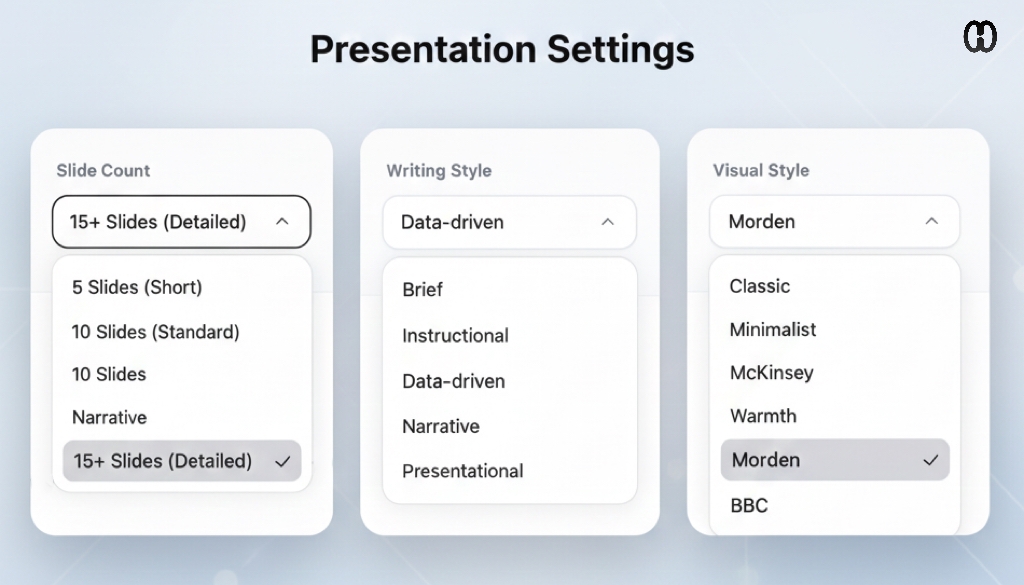
Every presentation has a different goal. Our new interface lets you dictate the level of detail before the first slide is even generated:
- 5 Slides (Short): Perfect for quick executive summaries or "Elevator Pitches."
- 10 Slides (Standard): Ideal for weekly syncs and project updates.
- 15+ Slides (Detailed): The go-to choice for technical deep-dives, training materials, and comprehensive project post-mortems.
3. Set the Tone with Writing Styles
A pitch to an investor shouldn't sound like a training manual. HyNote allows you to toggle the "personality" of your deck using the Writing Style dropdown:
- Data-driven: Focuses on metrics, KPIs, and logical evidence.
- Narrative: Builds a story-based flow to keep the audience engaged.
- Instructional: Perfect for "How-to" guides and internal onboarding.
- Brief: Gets straight to the point for high-speed reviews.
4. Design Without the Designer: Visual Styles
Visual consistency is what makes a deck look "pro." Instead of fumbling with master slides, choose a preset Visual Style that fits your brand:
- McKinsey: For that high-stakes, corporate consultant look.
- Modern/Minimalist: For clean, tech-forward aesthetic.
- Warmth: For community-focused or creative presentations.
- BBC: For authoritative, news-style layouts.
5. The Power of "Additional Instructions"
This is where the Nano Banana Pro prompting logic comes into play. The text box at the bottom is your direct line to the AI. Want to emphasize a specific date or a certain financial figure? Just type it in.
Example: "Focus heavily on the Q4 revenue growth and ensure the final slide clearly lists the three priority hires for next month."
The HyNote Prompt Library
To get the most out of the Additional Instructions field, try these copy-paste formulas:
Productivity and Visualized
The future of work isn't about spending hours in PowerPoint; it's about having the right partner to synthesize your ideas. By combining the organizational power of your HyNote notebooks with our custom Presentation Settings, you’re not just making slides—you’re making an impact.
Ready to turn your ideas into impact? It’s a seamless one-stop process: simply upload your files or recordings to create a Source Note, then head to the Publish tab to generate your professional AI deck. Experience the HyNote Workflow and watch your last meeting become your best presentation yet.


