
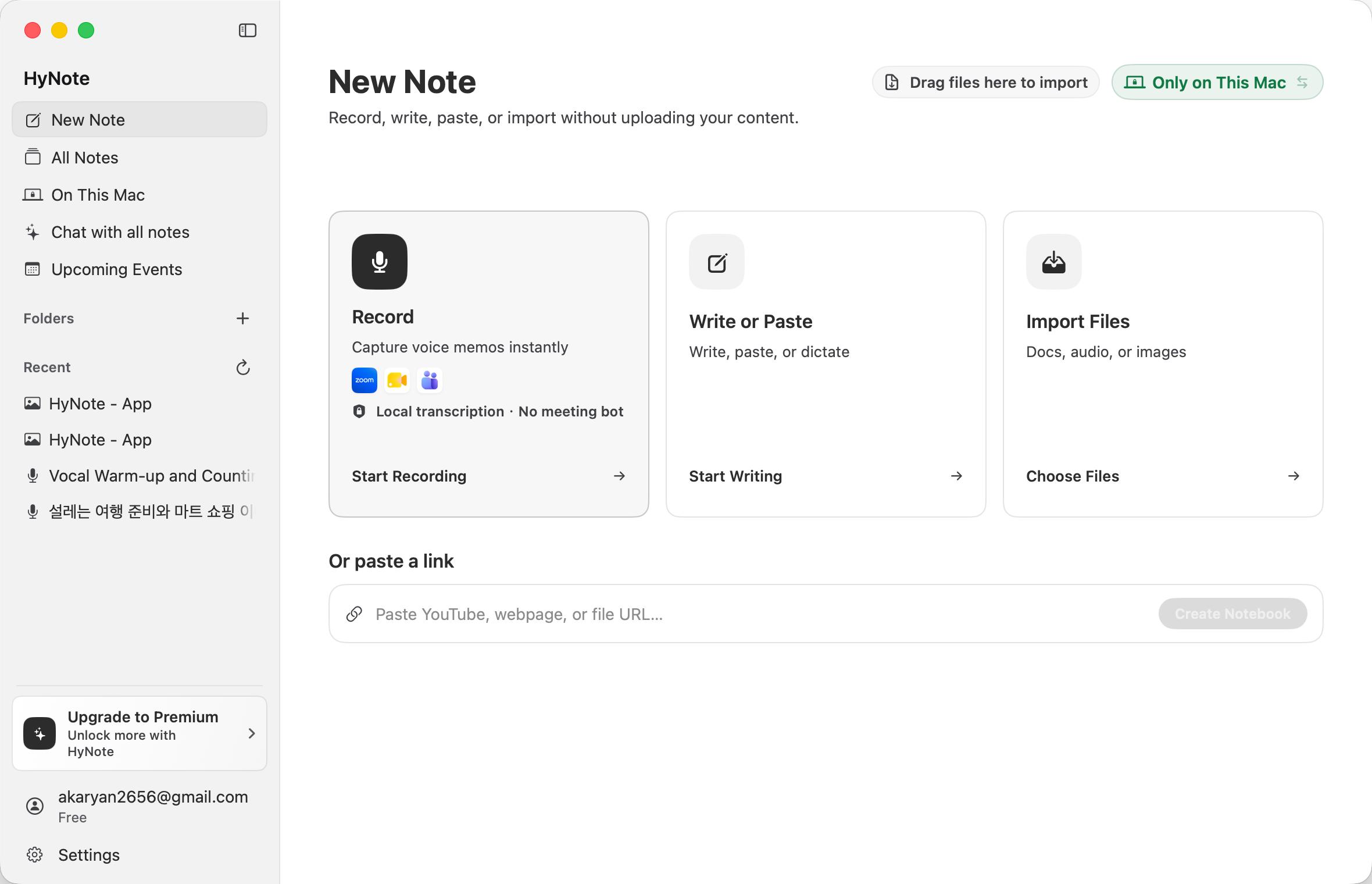
Create your first meeting note
If this is your first time using HyNote for Mac, follow these steps from start to finish.
- 01
Sign in to HyNote and allow microphone access when prompted.
- 02
Open New Note from the sidebar.
- 03
Choose Cloud or On This Mac before adding any content.
- 04
Select Record, then choose Meeting Recording or Voice Recording.
- 05
Choose an online or on-device transcription method and the main spoken language, then start recording.
- 06
When the recording ends, select Done and wait for transcription. If Local Speaker Identification is enabled, review the speaker results.
- 07
Open Notes on the right to create meeting minutes, a summary, action items, or another note card.
- 08
To ask follow-up questions, switch to Chat and enter a specific question.
Before you begin
Basic requirements
- HyNote for Mac requires macOS 14 or later.
- Sign-in, cloud sync, online transcription, Online AI, and online account management require an internet connection.
- Recording requires permission to use the microphone.
- To record audio played by meeting apps on your Mac, also allow Screen Recording or Screen & System Audio Recording. The permission name depends on your macOS version. HyNote captures meeting audio; it does not record screen video.
- On-device transcription, Local AI, and Local Speaker Identification each have separate device and system requirements.
Allow time for local models
The first time you use an on-device feature, macOS or HyNote may need to download a language or speaker model. Prepare these models on a stable connection before an important meeting.
What each permission is used for
| Permission | When it is needed | Purpose |
|---|---|---|
| Microphone | Voice recording, meeting recording, and dictation | Records your voice and sound near the Mac. |
| Screen Recording / Screen & System Audio Recording | Meeting recording | Captures audio played by Zoom, Google Meet, Microsoft Teams, and other apps without recording screen video. |
| Speech Recognition | On-device transcription on some macOS versions | Uses the speech capabilities provided by macOS. |
| User-selected files and folders | Import, export, or Show in Finder | Accesses only the locations and files you choose through the system file picker. |
If you previously denied microphone, screen recording, or speech recognition access, open System Settings > Privacy & Security and allow HyNote in the relevant section. macOS may ask you to reopen the app after a recording permission changes. File and folder access is normally granted for each location through the system picker and may not appear as a permanent permission.
Sign in and finish initial setup
Sign in
HyNote supports Google, email, and Apple sign-in. Selecting a method opens a browser page where you complete verification, then return to HyNote. Do not close the sign-in page while verification is in progress; cancel in HyNote first if you want to choose another method.
- Continue with Google
- Continue with email
- Continue with Apple
Complete setup
- 01
Choose your work role so HyNote can adjust recommended content and templates.
- 02
Check microphone and meeting-recording permissions.
- 03
Choose the default transcription method and language.
- 04
Prepare an on-device transcription model when needed.
After setup, HyNote opens New Note. You can later change the app language, default transcription method, transcription language, and AI processing mode in Settings.
Get to know the Mac app
Sidebar
The sidebar brings the main HyNote destinations together. Press Control + Command + S to show or hide it.
- New Note: record, write, paste, import a file, or add a link.
- All Notes: view notes synced to HyNote Cloud.
- On This Mac: view notes stored only for the current account on this Mac.
- Chat with All Notes: ask questions across multiple cloud notes.
- Upcoming: when available, connect Google Calendar, see meetings from the next 15 days, and open their meeting links.
- Drafts: recover recordings when a recoverable draft exists.
- Folders: organize cloud notes by project, class, or topic.
- Recent: return to recently opened content.
- Account: view your plan, usage, sign-in details, and account actions.
- Settings: manage language, recording, transcription, AI, storage, and updates.
Menu bar controls
While HyNote is running and you are signed in, the Mac menu bar provides quick actions without first showing the main window.
- Start a meeting recording or voice recording.
- Create a new note or open Write or Paste.
- Import a file.
- Capture part of the screen and create a note from the image.
- View the current recording time.
- Pause, resume, or finish a recording.
- Open the full recording window.
When Meeting Recording Reminders are enabled, HyNote can notify you in a supported meeting situation. You can ignore that reminder, pause reminders for one hour, or turn them off in Settings.
Choose where a note is saved
Cloud or On This Mac
Choose a storage location at the top right of New Note before recording or importing. To avoid conflicting states, the location cannot be changed while the current task is in progress.
| Location | How content is saved | Best for | Important |
|---|---|---|---|
| Cloud | The note and related content follow the cloud save and sync workflow. | Multi-device access, Online AI, and online transcription. | Content required for online processing is sent to online services. |
| On This Mac | Original content and notes stay in the current account directory on this Mac. | Private meetings, offline organization, or content you do not want to upload. | HyNote Cloud cannot restore it; export or back it up before changing Macs. |
On This Mac is not a cloud cache
Notes under On This Mac are independent local content, not offline copies of cloud notes. If a local note or local app data is deleted, HyNote Cloud cannot restore it.
Add a local note to HyNote Cloud
Open a local note and select Add to HyNote to copy its sources and generated note cards to HyNote Cloud. The original local copy is not deleted automatically. Local chat history is not included, so copy any important answers before uploading. Confirm that the content is allowed to enter the cloud before continuing.
Create a new note
Write or paste
- 01
Select Write or Paste.
- 02
Enter a title and body, or paste content from the clipboard.
- 03
For voice input, select Dictation and allow microphone access.
- 04
For drafting help, select Let AI Write and describe the topic, structure, and language.
- 05
Check the storage location, then select Create Note or Save to This Mac.
Generated text is inserted at the current editing position and does not automatically replace text you already wrote. Command + Return also creates the note.
Import files
Select Import Files or drag files onto New Note. HyNote supports common documents, media, and image formats.
| Content | Current limit |
|---|---|
| Document | Up to 50 MB per file. |
| Up to 500 pages. | |
| Images | Up to 10 at a time and 50 MB per image. |
| Audio or media | Up to 200 MB per file. |
- Documents: PDF, DOCX, PPTX, XLSX, TXT, MD, Markdown, RTF, HTML, HTM, CSV, and TSV.
- Audio and media: WAV, FLAC, MP3, M4A, WEBM, and MP4.
- Images: PNG, JPEG, HEIC, and other common formats readable by macOS.
When On-device Content Recognition is enabled, HyNote can recognize text in scanned PDFs and images on the current Mac. Results depend on image clarity, orientation, font, and language.
The 500-page PDF import limit is not an on-device OCR limit. For a note saved On This Mac, on-device OCR processes up to 80 scanned pages. HyNote still keeps the original PDF when that capacity is exceeded, but complete searchable text may not be available to Local AI.
Add a webpage or file link
- 01
Paste a complete URL into New Note.
- 02
Wait for HyNote to identify a webpage, YouTube video, or downloadable file.
- 03
Review the preview and storage location, then create the note.
For On This Mac, the current Mac reads the webpage or remote file and stores it in the local note. Creating that local note does not automatically upload it to HyNote Cloud.
Add a YouTube video
Paste a YouTube watch URL or youtu.be URL. HyNote first tries to read existing captions. If no usable captions are available, play the video and use Meeting Recording to capture the Mac audio, then generate a transcript.
Record and transcribe audio
Choose a recording mode
| Mode | What it records | Typical use | Permissions |
|---|---|---|---|
| Voice Recording | Microphone only. | Voice memos, interviews, and in-person discussions. | Microphone. |
| Meeting Recording | Microphone and Mac audio. | Zoom, Google Meet, Microsoft Teams, and other online meetings. | Microphone and Screen Recording / Screen & System Audio Recording. |
Meeting Recording does not invite a bot and does not capture screen video. Whether a meeting may be recorded still depends on local law, meeting rules, and participant consent. Confirm permission before recording.
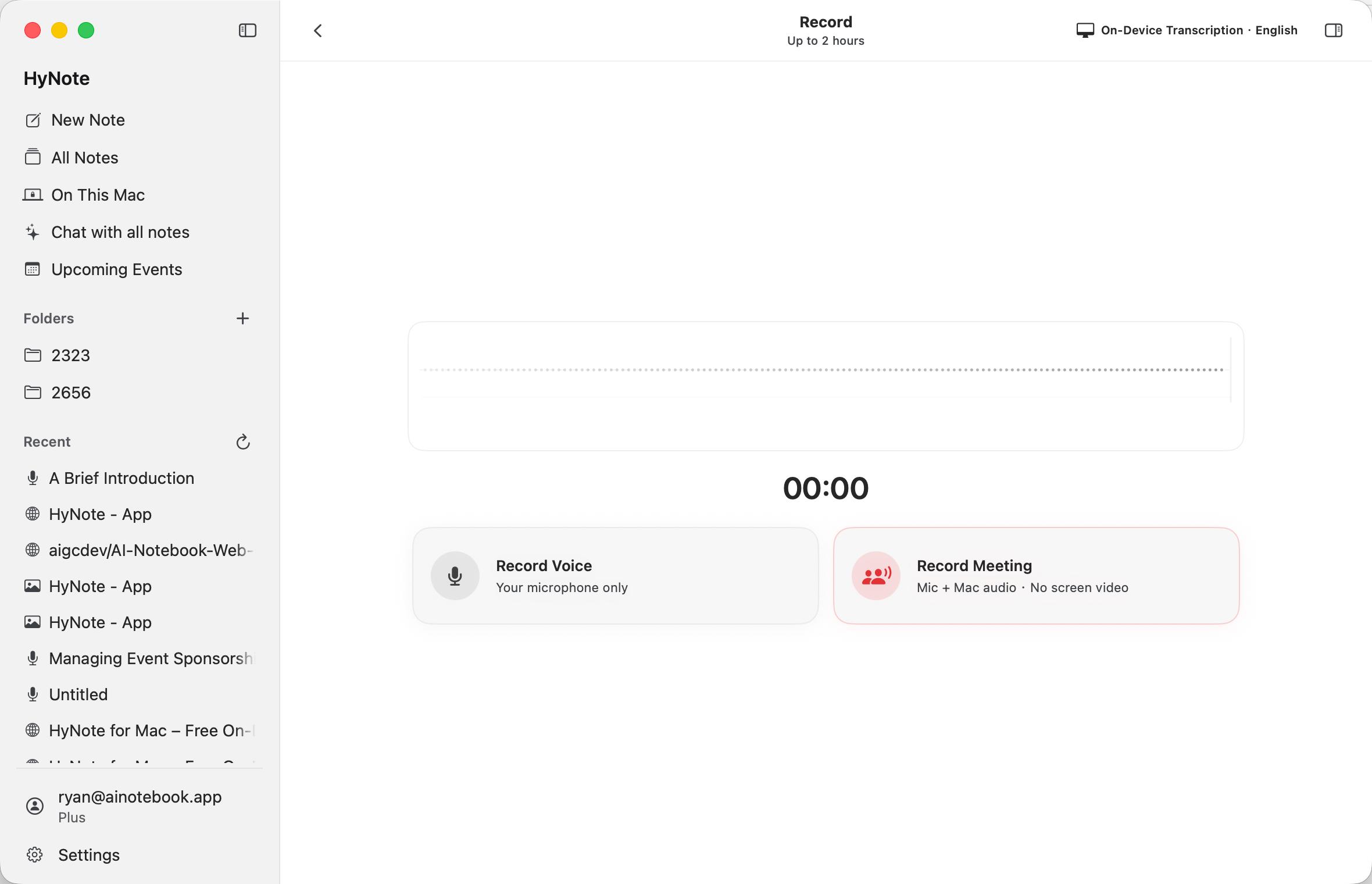
Check these settings before recording
- 01
Confirm whether the storage location is Cloud or On This Mac.
- 02
Choose Voice Recording or Meeting Recording.
- 03
Choose on-device or online transcription.
- 04
Match the transcription language to the main language being spoken.
- 05
For online transcription, decide whether you need live text and live speaker labels.
- 06
Confirm that the input waveform responds to sound.
On-device transcription shows live text by default when the selected model is ready. You can turn off live text before starting and create the full transcript afterward. Online live text appears only for supported languages and plans; other online languages are processed after recording.
During a recording
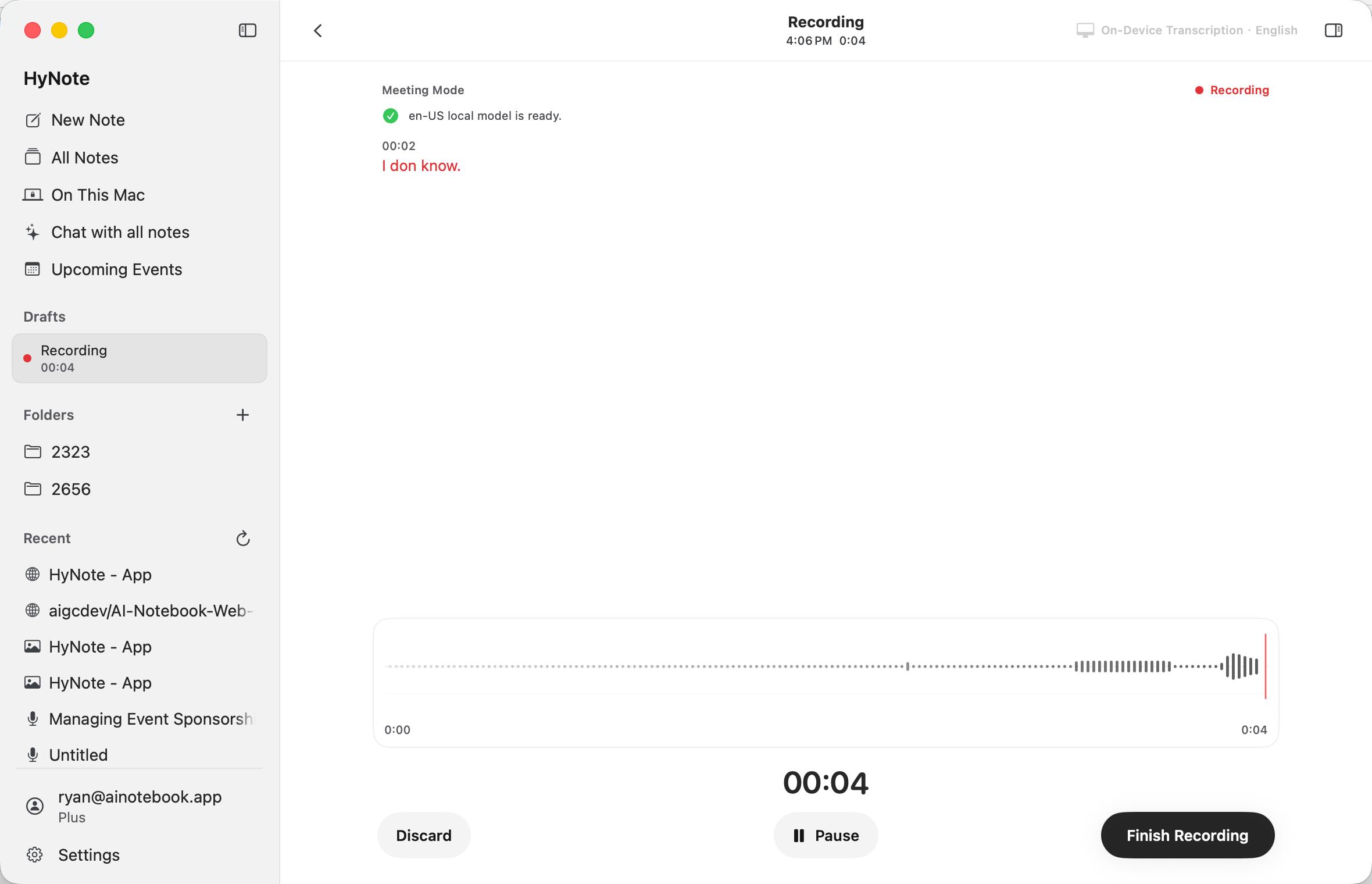
- Select Pause to stop capturing temporarily, then Resume to continue.
- When real-time transcription is available, text appears as recording continues.
- You can open the library or another page. HyNote asks whether to keep recording in the background or pause and leave.
- The menu bar shows status and duration and can pause, resume, or finish the recording.
- Choose Discard only when you are sure the recording is no longer needed; an unsaved recording may not be recoverable.
Take rough notes and ask questions while recording
- Use Rough Notes for names, decisions, numbers, or tasks you want to preserve with the recording.
- Use AI Chat to ask for a summary so far, current action items, or decisions already made.
- Each question uses the latest real-time transcript and Rough Notes snapshot available at that moment.
- If real-time transcription is off, add Rough Notes to provide context for in-recording AI.
- You can stop an answer in progress or clear the temporary recording chat.
In-recording AI Chat is temporary and is not saved with the final note or recording draft. Copy answers you need or put important facts in Rough Notes, which are saved with the recording.
A recording saved On This Mac uses Local AI. If Local AI is unavailable, you can still record and take rough notes, then organize the note after recording.
Finish a recording
Select Done to save the audio, finish transcription, run any applicable speaker processing, and create the note. Longer recordings normally take longer to process.
Do not force-quit while HyNote shows Saving. A network interruption does not immediately delete audio already written to the Mac; follow the app prompt to retry or process it later.
Recover a recording draft
After an app exit, Mac restart, network interruption, or incomplete processing, HyNote attempts to preserve a recoverable recording. Open its recovery card on New Note or open Drafts from the sidebar.
- Open the draft to inspect it.
- Process it now and create a note.
- Keep it and process it later.
- Show the original file in Finder.
A draft without saved live text can still be processed to create a transcript.
Choose a transcription language
Understand the three transcription ranges
Online real-time transcription supports six languages. Online post-recording transcription supports 36 languages. On-device transcription does not use a fixed HyNote language count; the app shows the languages currently provided by macOS on your Mac.
| Method | Current range | Live text | Network |
|---|---|---|---|
| Online real-time transcription | 6 languages. | Yes. | Required. |
| Online post-recording transcription | 36 languages; six also support live text. | Only for the six live languages. | Required. |
| On-device real-time transcription | Varies by the current Mac. | Yes, when the model is ready. | Can process on device after model preparation. |
Languages with online live text
Online real-time transcription currently supports English, Spanish, French, German, Italian, and Portuguese on Plus and Unlimited plans. Other online languages can still be recorded and processed after the recording ends.
Why the app language list is the final answer
A webpage cannot inspect your Mac model, macOS version, installed speech resources, device language, region, or permission state. Check the recording language menu or Settings > Recording & Transcription. A selectable language whose model is ready is available on that Mac.
Use speaker features
Choose the correct speaker feature
| Feature | When it runs | Result | Does it know a name? |
|---|---|---|---|
| Online real-time speaker labels | During an online live transcript. | Anonymous labels such as Speaker A and Speaker B. | No. |
| Local Speaker Identification Beta | After a recording made with on-device transcription. | Separates speakers and lets you review them. | Only after you name, confirm, and choose to remember a voice can HyNote suggest that name later. |
Online real-time speaker labels
Enable speaker labels together with online real-time transcription. They work with its six live languages, distinguish voices with anonymous labels, do not determine real identity, and do not automatically use names saved on the Mac.
Review Local Speaker Identification Beta
Local Speaker Identification runs only with on-device transcription. It requires an Apple silicon Mac, the Beta feature enabled, and an approximately 22 MB model download. Analysis runs on the Mac after recording.
- Listen to samples from each detected speaker.
- Adjust the expected number of speakers from 1 to 8.
- Enter a name for a speaker.
- Merge the same person when they were separated incorrectly.
- Ignore a speaker you do not need.
- Choose whether to remember the name and voice characteristics for future suggestions.
- View or delete remembered voices in Settings > Recording & Transcription > Remembered Voices.
Speaker features assist with note organization; they are not identity authentication. Review important names, commitments, and task assignments yourself.
Manage your library
All Notes
All Notes manages cloud notes. Cached notes may remain visible offline, but uncached content may not open and available actions depend on current page and cache state. Treat cached cloud notes as temporary local copies, not complete offline backups.
- Search notes and sort from newest or oldest.
- Open, rename, pin, or unpin a note.
- Move notes to folders and edit tags.
- Select multiple notes to move, retag, or delete them in bulk.
- Refresh cloud content.
Folders
Use the plus button beside Folders to create one, then move notes with a menu or drag and drop. Renaming or deleting a folder changes the category only; it does not delete the notes inside.
Multi-source notes
A multi-source note combines the sources from two to five existing cloud notes for joint summaries and questions.
- 01
Select Multi-source Note from All Notes.
- 02
Choose at least two and no more than five notes.
- 03
Confirm creation.
A note already used as a multi-source note cannot be combined again, and a note without a valid source cannot be selected.
On This Mac
On This Mac shows only local notes for the current account. Deleting one also deletes its original content, transcript, note cards, chat, and recording. Export or copy a backup in Finder first when the content matters.
- Open, rename, and delete local notes.
- View original text, transcripts, recordings, images, or PDFs.
- Use Local AI for note cards and chat.
- Copy content and export a PDF.
- Show managed files in Finder.
- Copy the note to HyNote Cloud with Add to HyNote.
Upcoming events
When Upcoming is available, connect Google Calendar in the browser to see events from the next 15 days, open their meeting links, or start Meeting Recording beside an event. Calendar connection does not start recording automatically. Check mode, permissions, storage, language, and participant consent before you record.
Read and organize notes
Two-column workspace
The left side normally shows source content such as a document, webpage, image, recording transcript, or YouTube captions. Notes and Chat appear on the right for generation, editing, and follow-up questions. Drag the divider to change the right-side width. Select a transcript timestamp to jump to that position in audio or video.
A cloud recording with a missing or outdated transcript may offer Online Retranscription. You must choose the language again, and the audio is sent to the online transcription service.
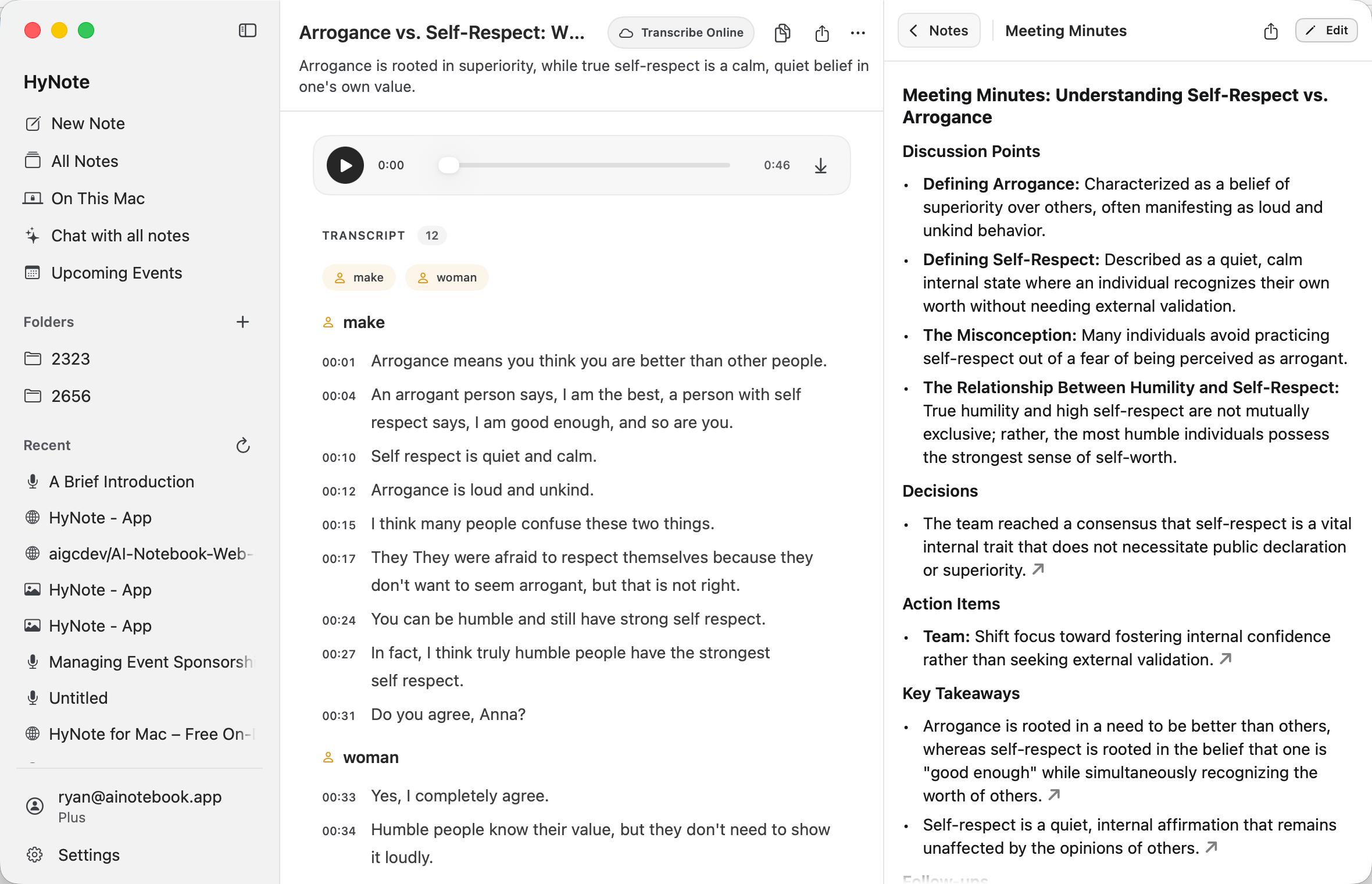
Note cards
Common cards include Brief Summary, Meeting Minutes, Bullet Notes, Action Items, Mind Map, and Follow-up Email. The template library may also provide quizzes, flashcards, custom templates, and other structures. Audio Overview requires Online AI.
When Automatically Create the First Note is enabled, an empty notebook selects a suitable first card. You can change the template or cancel during the countdown, or turn this behavior off in Settings.
Edit a note card
- Select a card to open its full reading view.
- Select Edit to change the title or body.
- The editor supports Markdown and opens formatting commands when you type /.
- Save states can include Saving, Saved, Save Failed—Retry, Offline—Read Only, or Saved Locally—Waiting to Sync.
- Cards can be copied, pinned, or deleted.
- Mind maps support zoom and fit-to-window controls.
Deleting a note card does not delete the entire notebook. When deleting a notebook, verify its title and the impact shown in the confirmation dialog.
Copy and export
Source content can be copied directly. HyNote for Mac currently exports cloud notes as PDF, plain text (.txt), Markdown (.md), or JSON. It does not currently export directly to Notion or Google Docs.
A note saved On This Mac currently exports as PDF. You can also use Show in Finder to inspect and back up its original files.
Use AI
What AI can do
- Draft or continue writing.
- Summarize documents, webpages, and recordings.
- Create meeting minutes, action items, mind maps, and follow-up emails.
- Answer questions about the current note.
- Find and synthesize information across multiple notes.
- Generate titles and summaries.
AI can omit or misunderstand information. Verify numbers, names, dates, commitments, and any medical, legal, or financial content against the original source.
Online AI and Local AI
| Area | Online AI | Local AI |
|---|---|---|
| Processing | Online service. | Current Mac. |
| Network | Required. | Normally not required after system capabilities are ready. |
| Content size and features | Better suited to longer content and the complete feature set. | Limited by device capabilities and local context length. |
| Privacy | Content required for the request is sent to an online service. | Prompts, recognized text, and generated results are processed on a compatible Mac. |
If content is too long or a request is not suitable for local processing, HyNote explains why and can suggest Online AI. The request switches to online processing only after you confirm.
Local AI requirements
- An Apple silicon Mac.
- macOS 26.4 or later.
- Apple Intelligence enabled.
- System models downloaded and ready.
- Device language and Siri language set to the same supported language.
- A supported app language, device, and region.
Open Settings > AI & Privacy to see the reason Local AI is unavailable and run the check again. HyNote additionally requires macOS 26.4 or later.
Check Apple's language and regional availabilityLocal AI languages
HyNote does not maintain a Local AI language list independent of macOS. Apple currently publishes a 16-language range, while HyNote checks the current system model and app language. Unsupported input or requested output languages may be refused by the system. There is no separate AI output language switch; request a supported response language directly in your prompt.
See the current 16-language reference and requirementsChat with the current note
- 01
Open a note and select Chat on the right.
- 02
Enter a question or choose a suggested question.
- 03
Stop the response if needed.
- 04
Copy the answer, save it as a note card, or regenerate it.
Specific questions are easier to verify. For example: List the decisions, owners, and deadlines from this meeting and include the corresponding timestamps.
Chat with all notes
Chat with All Notes finds and summarizes information across cloud notes.
- 01
Open Chat with All Notes from the sidebar.
- 02
Enter a question and add a date range when useful.
- 03
Return to the relevant notes to verify the answer.
- 04
Copy the answer or regenerate it.
If the library is empty, HyNote asks you to create content first. Chat history is stored on the current Mac; whether it appears on another device depends on the current app version.
Settings, account, and updates
General
- App Language changes the HyNote interface; it does not change the recording language or existing note languages.
- Automatically Create the First Note controls whether a new notebook generates its first note card automatically.
The current interface languages are English, Japanese, Spanish, French, German, Italian, Korean, Dutch, and Simplified Chinese.
Recording and transcription
- Enable or disable Meeting Recording Reminders.
- Choose on-device or online transcription as the default.
- Choose a default language for recordings and imported audio.
- View, download, retry, or delete on-device transcription models.
- Enable Local Speaker Identification Beta.
- Download or delete the local speaker model.
- Manage remembered voices.
Deleting a model does not delete completed notes or transcripts, but the model may need to download again. Deleting the local speaker model does not delete remembered voices; remove those separately under Remembered Voices.
AI and privacy
- Choose Online AI or Local AI as the default.
- Check whether Local AI is available and see why it is unavailable.
- In Local AI mode, enable On-device Content Recognition for text in PDFs, images, and scanned pages.
Storage
Local Storage Used includes cached notes, pending imports, chat history, recording drafts, local notes, and other files for the current account.
Clear Local Data and Sign Out permanently removes this account's local notes, recordings, drafts, chat, caches, and other local files from this Mac and signs out. It does not delete cloud notes. Use Show Local Notes in Finder to make a backup first.
Local-only content cannot be restored from HyNote Cloud after local data is cleared.
Updates and About
Check for and install updates in Settings. An update cannot run during a recording, so finish or safely preserve the recording first. Privacy Policy and Terms of Service links are also available here.
Account
- View your email, sign-in method, and user ID.
- View or change your work role.
- Check the current plan and usage, including online real-time transcription usage.
- Open subscription management.
- Sign out or start account deletion.
Manage a subscription through its original purchase channel. App Store or Google Play subscriptions open the corresponding platform; other subscriptions follow the instructions shown on the Account page.
Account deletion permanently removes the HyNote account and all cloud notes. It also deletes the current account's local notes, chats, drafts, caches, and original recordings from this Mac. Back up anything important before confirming.
Privacy and local data
Where processing and storage happen
- Cloud notes follow the cloud save and sync workflow.
- On This Mac keeps original content, transcripts, and Local AI results on the current Mac. Online transcription is not available for this storage location; a copy enters HyNote Cloud only after you explicitly choose Add to HyNote.
- Online transcription sends audio to an online transcription service.
- On-device real-time transcription uses macOS speech capabilities.
- Online AI sends content required for the current request to an online service.
- Local AI processes prompts and generation on a compatible Mac.
- Local Speaker Identification analyzes audio on the Mac after its model is ready, and remembered names and voice characteristics stay under the current account on that Mac.
On-device transcription and Local AI describe processing steps; they do not change where the note is stored. A cloud recording still follows the cloud upload workflow, and a Local AI result saved as a cloud note card still syncs. Choose On This Mac before starting when the entire note must remain local.
Delete and back up local content
Having a HyNote account does not give local-only content a cloud backup. Back up important recordings and On This Mac notes regularly.
- 01
Export a PDF or copy the text.
- 02
Use Show in Finder to locate the original files.
- 03
Copy them to a backup location you control.
Editing HyNote-managed files directly in Finder can make a note unreadable. Edit in the app; use Finder to inspect and copy backups.
Keyboard shortcuts
Common shortcuts
| Action | Shortcut |
|---|---|
| Create the text note being edited | Command + Return |
| Show or hide the sidebar | Control + Command + S |
| Zoom in | Command + + |
| Zoom out | Command + - |
| Actual size | Command + 0 |
| Confirm the primary action in some dialogs | Return |
| Close or cancel a dialog | Escape |
The macOS menu bar and button tooltips show additional shortcuts available in the current context.
Troubleshooting and common questions
Why can't I start recording?
Open System Settings > Privacy & Security > Microphone and allow HyNote. If you just changed the permission, quit and reopen HyNote, then check whether the recording waveform responds to sound.
Why does a meeting recording capture only my voice?
Meeting Recording also needs Screen Recording or Screen & System Audio Recording permission, depending on the macOS version. Allow it, reopen HyNote, and choose Meeting Recording. Voice Recording captures only the microphone.
Why is online real-time transcription not showing text?
Check that your plan supports it, live transcription is on, the selected language is English, Spanish, French, German, Italian, or Portuguese, the connection is stable, and an audio waveform is visible. Other online languages are processed after recording.
Why isn't an on-device transcription language listed?
HyNote shows only the on-device languages currently provided by your Mac. Check the Mac model, macOS version, device language, region, and model download state. On macOS 26 or later, try downloading the model from transcription settings.
Can I use Turkish?
Turkish supports online post-recording transcription and is in Apple's current Local AI language range. It is not one of the six online live languages. For on-device transcription, check the languages shown by HyNote on your Mac.
Why can't I turn on Local AI?
Check for Apple silicon, macOS 26.4 or later, Apple Intelligence enabled, and system models ready. Device region, Apple Account region, device and Siri language, and the current app language can also affect availability.
Why does a YouTube link say no captions are available?
Some videos do not expose usable captions. Play the video and use Meeting Recording to capture Mac audio, then create a transcript. Confirm that you have permission to record the content.
How do I fix speakers that were split or merged incorrectly?
In the post-recording speaker review, adjust the expected speaker count, listen to samples, then merge, ignore, or rename speakers. Short, overlapping, or noisy speech normally requires more manual review.
What does Saved Locally—Waiting to Sync mean?
The cloud note change is temporarily stored on this Mac until the connection returns. Stay signed in and retry after reconnecting. Do not clear local data or remove local files before sync completes.
Where is my recording after HyNote closed unexpectedly?
Reopen HyNote and check the recovery card on New Note and Drafts in the sidebar. Open or process the draft, or use Show in Finder first when you need a backup.
Does deleting a folder delete its notes?
No. Deleting a folder removes the category; its cloud notes remain in All Notes. Deleting an individual note uses a separate confirmation flow.
Does clearing local data delete cloud notes?
No, but Clear Local Data and Sign Out permanently removes local notes, recordings, drafts, chat, caches, and other local files for the current account and signs out. Local-only content cannot be restored from the cloud, so back it up first.