5-minute Mac setup · Zoom
How to Record a Zoom Meeting on Mac Without a Bot
You do not need to invite an AI participant into your Zoom call.
HyNote records Zoom audio directly from your Mac, captures your microphone, creates a searchable transcript, and turns the conversation into decisions and action items.
Before you start
Three things to have ready
- Five minutesfor first-time permissions
- Your usual setupheadphones work normally
- Participant consentbefore recording begins
Step by step
Record and transcribe your Zoom call
Zoom continues to work exactly as usual. HyNote listens to the two audio sources on your Mac and builds the note alongside the call.
- Step01
Tell participants you are recording
Always inform meeting participants and obtain any consent required in your location or organization.
- Step02
Open HyNote
Create a new note, select Record, and allow microphone and system-audio permissions when macOS asks.
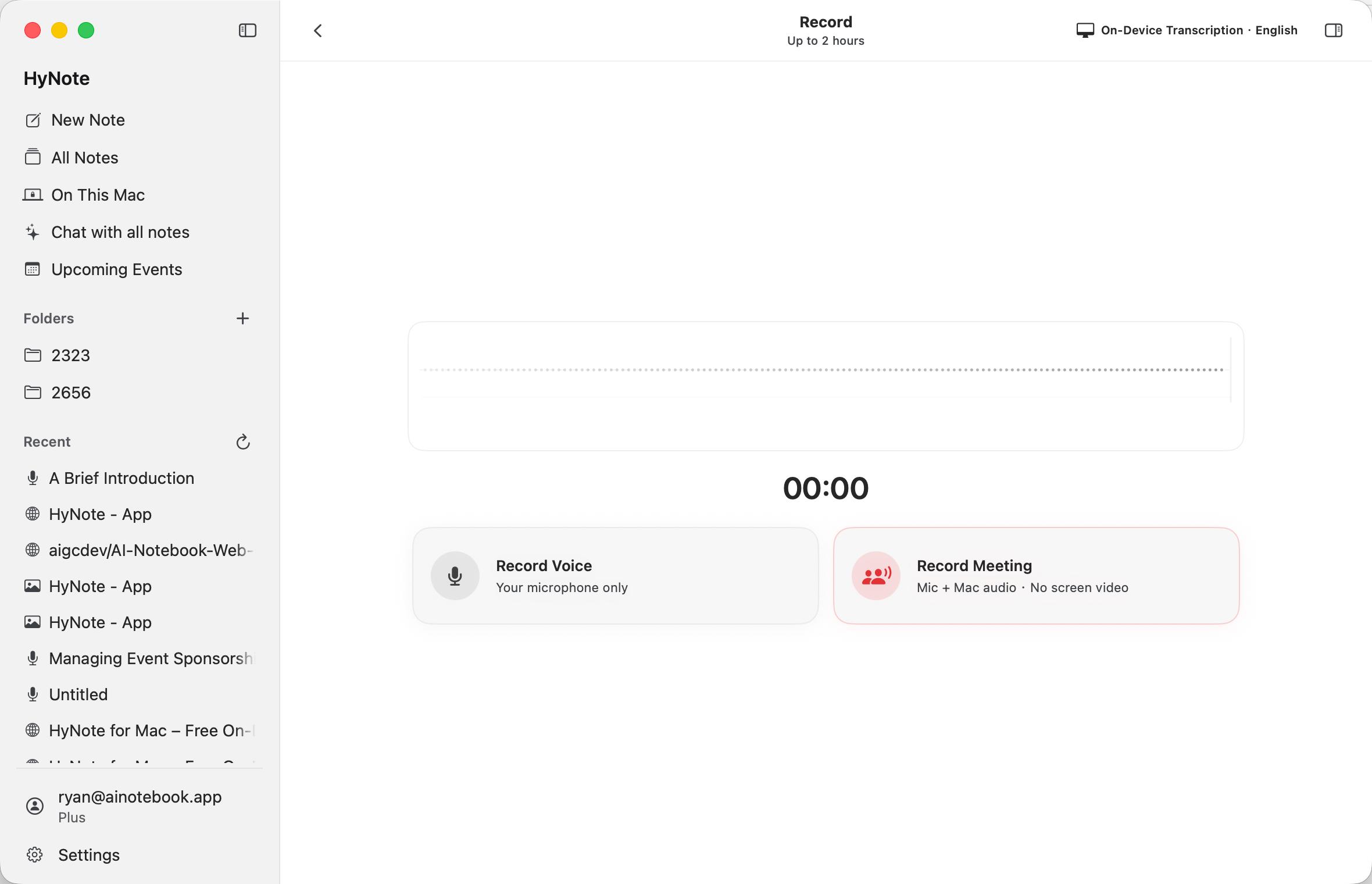
Choose system audio and your microphone before the call starts. - Step03
Join your Zoom meeting
Use your normal Zoom account and headphones. No HyNote bot appears in the participant list.
- Step04
Start recording in HyNote
HyNote captures the audio you hear from Zoom together with your microphone. Follow the live transcript while the meeting continues.
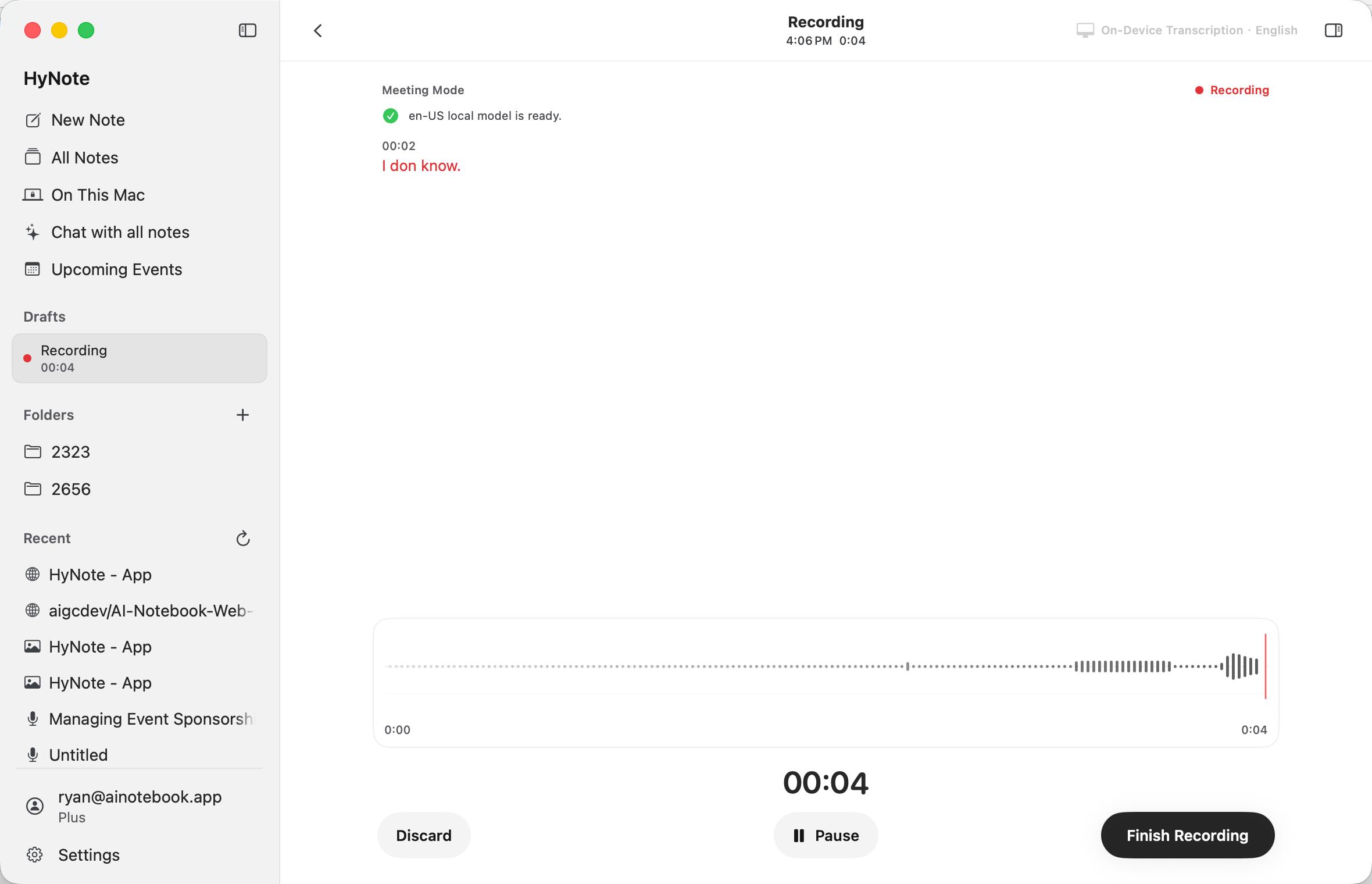
Keep the live transcript visible while Zoom continues normally. - Step05
Stop recording and review the result
When the meeting ends, stop recording. HyNote creates a speaker-labeled transcript, summary, key decisions, owners, deadlines, and action items.
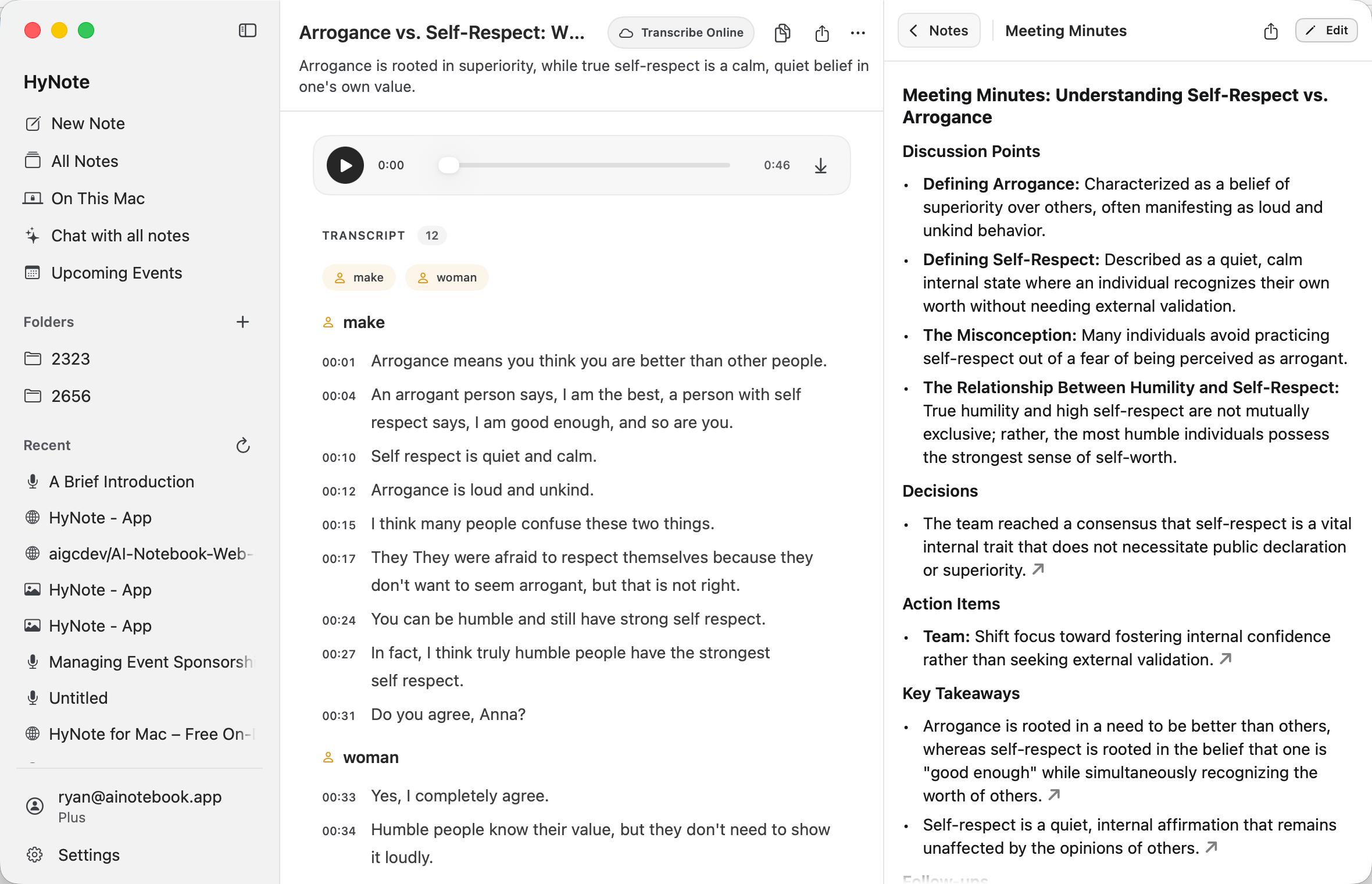
Review the transcript, decisions, owners, deadlines, and next steps.
Quick fixes
Troubleshooting
Most first-run issues come down to one macOS permission or audio source.
No Zoom audio in the transcript?
Check HyNote’s system-audio permission in macOS Settings.
Your microphone is missing?
Enable microphone access for HyNote and confirm the correct input device.
Using headphones?
HyNote captures system audio directly, so headphones should not prevent meeting audio capture.
No Local AI summary?
Check your macOS version, Apple silicon compatibility, Apple Intelligence availability, and selected AI mode.
Common questions
Zoom recording on Mac FAQ
The short version: HyNote records at the Mac level, so you can keep your normal Zoom workflow.
Explore HyNote for MacDoes HyNote join Zoom as a participant?
No. HyNote runs on your Mac and captures system audio plus your microphone. It does not appear in Zoom’s participant list.
Can I record Zoom while wearing headphones?
Yes. HyNote captures Zoom through macOS system audio, so you can keep using headphones. Make sure Zoom is playing through the output device selected on your Mac.
Can it distinguish different speakers?
Yes. HyNote can create speaker-labeled transcripts. Clear audio, distinct voices, and fewer people talking over one another produce the best separation.
Does the transcript leave my Mac?
It can stay on your Mac when you use on-device transcription and Local AI on a compatible Mac. If you choose a cloud AI mode or online sync feature, the relevant content is processed online.
Do I need Zoom’s built-in recording permission?
HyNote does not use Zoom’s built-in recorder, but you must still tell participants and follow the consent, workplace, and local legal requirements that apply to your meeting.
Can I use it with Teams and Google Meet?
Yes. HyNote captures system audio at the Mac level, so the same workflow works with Microsoft Teams, Google Meet, and other meeting apps.
Is Zoom transcription free?
HyNote’s core local recording and on-device transcription features stay free on Mac, with no credit card required.
Ready for your next call?
Record Zoom without changing the meeting.
Capture system audio and your microphone, then leave with a searchable transcript and clear next steps.