Apple Watch · Transcription · How-to
How to Record and Transcribe Meetings on Apple Watch
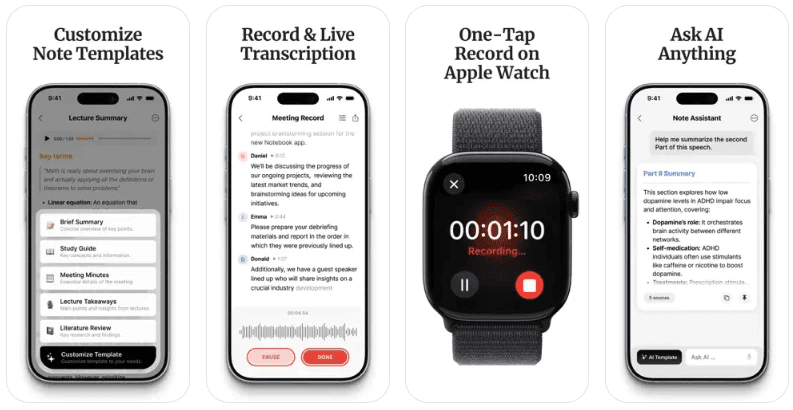
Apple Watch is ideal for capturing a meeting, lecture, or idea when your phone is out of reach. With HyNote, the recording syncs to your workspace and becomes a searchable transcript, summary, and set of action items.
Can Apple Watch transcribe meetings?
Yes, but the Apple Watch is the capture device. HyNote records audio from your wrist, then generates the transcript and AI summary after the recording syncs to your main HyNote workspace.
That workflow is useful when you need to stay present in a conversation instead of holding a phone. You can record first and review the transcript, key points, and action items on your iPhone, iPad, Mac, or the web app.
Need a transcript from another recording? Try the AI transcript generator after you capture your audio.
How to record and transcribe a meeting on Apple Watch
The process is simple: start the recording on your Watch, let HyNote sync the audio, and open the finished note on a larger screen.
Open HyNote on your Apple Watch
Open the HyNote Watch app and tap the record control. You can also start from the complication if it is available on your watch face.
Record the meeting, lecture, or voice memo
Keep the Watch on your wrist and focus on the conversation. HyNote captures the audio without requiring you to type notes on your phone.
Stop recording and let the audio sync
When you finish, stop the recording. The audio is transferred to your HyNote workspace so the transcript can be created.
Read the transcript and AI summary
Open the resulting note on iPhone, iPad, Mac, or the web. HyNote turns the recording into a timestamped transcript, summary, key points, and action items.
How to turn Apple Watch voice memos into a transcript
A voice memo is most useful when you can search it later. After the Watch recording reaches HyNote, the audio becomes text that you can review, summarize, and use as the source for follow-up work.
The transcript is not meant to be read on the small Watch display. The Watch handles quick capture; your phone, tablet, computer, or browser is where you review the transcript and ask questions about what was said.
Learn more about HyNote audio transcription and how recordings become searchable notes.
What Apple Watch recording is best for
Recording from your wrist works best when you need a fast, discreet way to capture one conversation or a thought. It is especially useful when taking out a phone would interrupt the moment.
- Walking meetings and one-on-one conversations
- Lectures, seminars, and study ideas
- Interview notes and field observations
- Voice memos and reminders before an idea disappears
- Short team stand-ups and follow-up notes
What to know before recording
Apple Watch recording is designed for capture, not for reading a full transcript on your wrist. The transcript and summary are available after the recording syncs to the main HyNote app.
For a large room, several people speaking over one another, or a long session, place the recording device close to the speakers and review the result carefully. Automatic transcripts can contain mistakes when audio is noisy or voices overlap.
Apple Voice Memos vs. HyNote for Apple Watch
| Capability | Apple Voice Memos | HyNote |
|---|---|---|
| Capture from your wrist | Yes | Yes, with HyNote on Apple Watch |
| Searchable transcript | Not by itself | AI transcript after sync |
| AI summary and key points | No | Yes |
| Action items | No | Extracted from the note |
| Speaker labels | No | Available when supported by your HyNote plan and recording |
| Cross-device review | Apple device sync | iPhone, iPad, Mac, and web workspace |
| Ask questions about the recording | No | Chat with the synced note |
Turn transcripts into meeting notes with structured summaries and follow-up actions.
Frequently asked questions
HyNote records on Apple Watch and generates the transcript after the recording syncs to the main HyNote workspace. You review the transcript on iPhone, iPad, Mac, or the web app.
HyNote can turn an Apple Watch recording into a transcript, summary, and action items after the audio reaches your HyNote workspace. The Watch is used for capture; the finished transcript is reviewed on a larger screen.
The recording and its generated transcript appear in your HyNote workspace after syncing. You can review the note on iPhone, iPad, Mac, or the web app.
No. The purpose of the Watch workflow is to start and capture audio from your wrist. The recording must sync before the transcript and summary are available in HyNote.
Yes. Once the recording syncs, HyNote can generate a concise summary, key points, and action items alongside the transcript.
Yes. After the recording becomes a HyNote note, its transcript can be searched and used with HyNote's note tools.
Turn your next Apple Watch recording into a smart note
Record a meeting, lecture, or voice memo from your wrist, then open HyNote to find the transcript, summary, and next steps in one place.