Free account
Turn Images into Notes You Can Use
Upload a photo, screenshot, or whiteboard image. Turn its text into notes you can edit, save, and review when you need them.
JPG, PNG, WebP, and other supported image formats. Up to 120 MB per image, and up to 10 images in one upload. Create an account or sign in to save your notes.
Keep the ideas from a page without typing them out. HyNote reads the text and visual content in your image to help create clear notes. Save an image note in your notebook, then return to it when you study. You can also choose flashcards or a quiz based on your image.
Turn photos, screenshots, and handwriting into editable notes with HyNote. Create an image note, review key ideas, then make flashcards or a quiz.
What is Image to Notes?
Image to notes means turning content from a picture into written notes. The source might be a notebook page, a slide, or a screenshot. The result is text you can read, edit, and use again.
An image note is a digital note made from a photo or screenshot. It can include the text, a short summary, and key points from the source. You can add your own thoughts as you review it.
HyNote uses multimodal AI to understand images directly. It can read text and use visual context to help organize your notes. Clear images work best. Check unclear words, numbers, and diagram details against the source.
How to turn an image into notes
Choose a clear image
Take a photo or choose an image from your device. Keep the page straight and make sure the words are easy to read. Crop out unrelated content before uploading.
Read and organize the content
Upload your image in HyNote. Choose Brief Summary or a notes template. AI reads the text and visual context to help organize the content. Check any names, numbers, or symbols against the source.
Save and review your notes
Edit your image note and add any missing context. Keep it in your notebook for later. For practice, choose Flashcards or Quiz to create study materials from your image.
What you get from your image
Notes based on your image
Turn readable content in your image into written notes. Review the result against the original.
Notes organized by topic
Choose the Study Notes template to group related ideas under clear headings. Review the organized notes alongside your image.
A short summary
Choose Brief Summary to get a short overview of your image. See the main idea before reading the details.
Key points for review
Choose Bulleted Notes to collect the main points in a clear list. Use it to start your next study session or prepare for a discussion.
Flashcards for review
Choose the Flashcards template to create practice cards from your image. Check each card before studying.
A quiz for practice
Choose the Quiz template to create questions from your image. Use them to find topics to review.
Why use Image to Notes?
Spend less time retyping
Start with the page you already have. Let AI read the image, then review and refine the notes.
Find ideas beyond your camera roll
A photo keeps the page, but useful ideas can get lost among other pictures. Keep related notes together in HyNote. Give the notebook a clear title so you can find it later.
Add context while it is fresh
Add the example your teacher explained or the decision behind a whiteboard sketch. Your own comments can make the notes more useful later.
Keep writing by hand
You can still use a pen during class or a meeting. Take a clear photo afterward and turn the page into digital notes.
Who uses Image to Notes?
Students reviewing handwritten notes
Scenario:You took notes in class and want a clearer version for review.
Result:Upload a sharp photo of the page. Choose Study Notes to organize the content into topics. For practice, choose Quiz to create questions from the image. Check the questions against the source.
Learners working with textbook pages
Scenario:A page contains definitions and examples you want to keep for revision.
Result:Turn the visible text into a short summary and key points. Keep the book title and page number in your notes for reference.
Teams saving whiteboard ideas
Scenario:A meeting ends with a whiteboard full of ideas and next steps.
Result:Upload a clear photo of the board. Create notes from the readable content. Add context for arrows or sketches yourself. Check names, owners, and dates against the original.
Researchers collecting screenshots
Scenario:You saved a chart caption, slide, or article excerpt as a screenshot.
Result:Create an image note from the readable content. Add the source link and your own comments. This helps you remember where the information came from.
What the output looks like
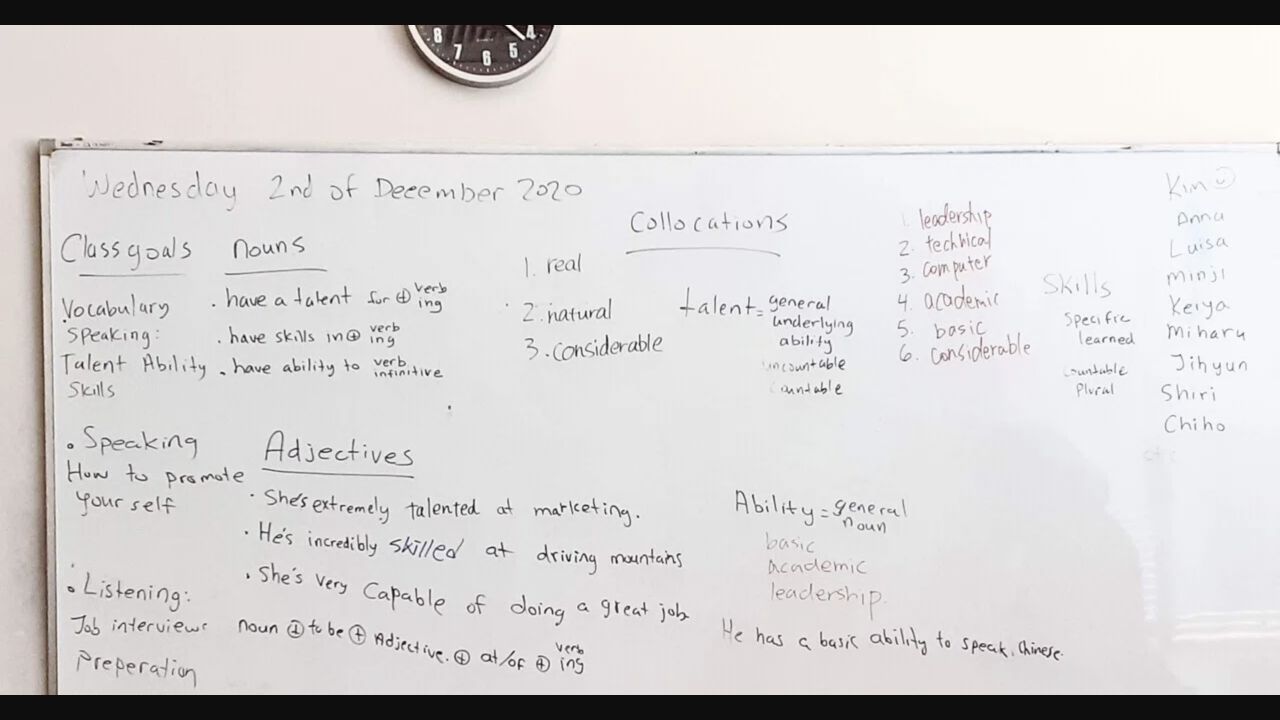
This example uses a real whiteboard photo as the source, then shows the summary, notes, and flashcards created from it.
Images you can turn into notes
| Image source | What to capture | Useful output |
|---|---|---|
| Handwritten notes | Clear writing on a notebook page | Topic notes and study questions |
| Textbook page | Readable text, headings, and definitions | Summary and key terms |
| Whiteboard photo | Legible ideas and written next steps | Meeting recap and follow-up notes |
| Slide screenshot | Visible headings and text | Main points and review notes |
| Document photo | Clear printed text | Editable notes and a short summary |
| Article screenshot | A readable passage with its source | Research notes and quotes to check |
For a full PDF document, use PDF to Notes. It is a better starting point than uploading each page as a separate image.
How to get clearer results
The quality of the image affects how well the text can be read. A few small changes can make the result easier to use.
Use even lighting and avoid glare.
Hold the camera steady so the text stays sharp.
Keep the page flat and the words upright.
Include the full passage you want to capture.
Crop out unrelated text and background objects.
Check names, numbers, formulas, and unusual terms after processing.
HyNote can recognize clear handwriting, but results vary. Joined-up writing, crossed-out words, and faint pencil marks may need extra review. Do not expect an exact copy of the page layout.
Web upload requirements
| Requirement | What to know |
|---|---|
| Image formats | JPG, PNG, WebP, and other supported image formats |
| File size | Up to 120 MB per image |
| Number of images | Select up to 10 images in one web upload |
| Text quality | Use clear printed text or legible handwriting |
| Account | Sign in or create an account to save your notes |
| Usage | Available image imports and AI features depend on your plan |
Image to Notes compared with other workflows
Choose the workflow that matches what you want to keep. A photo saves the page. Extracted text gives you the words. Notes help you organize the ideas.
| Task | HyNote Image to Notes | Text extraction only | Keep the photo |
|---|---|---|---|
| Work with visible content | Create notes based on the image | Extract the words | Read them in the image |
| Organize ideas | Create notes with headings and key points | Organize the text separately | Add notes separately |
| Get a short overview | Create a summary from the content | Write or generate a summary separately | Review the image yourself |
| Add your own context | Edit the notes in your notebook | Use a text editor | Use captions or annotations |
| Practice the material | Choose Flashcards or Quiz for the image | Use another study step | Create study materials yourself |
| Review unclear handwriting | Check it against the original | Check it against the original | Read it directly |
| Keep the exact visual layout | Refer to the source image | Layout may change | The photo keeps the layout |
FAQ
Sign in to HyNote and upload a clear image. Choose Brief Summary or the Study Notes template. Check the result against the source, then save your changes.
Yes, it can recognize legible handwriting. A sharp photo and clear writing give it a better source to read. Check unclear words before using the notes.
Results depend on how readable the writing is. Connected letters and crossed-out words can be harder to recognize. Review the result and correct anything that does not match the page.
An image note is a digital note created from a photo or screenshot. It may contain text, a summary, and your own comments. You can use it to keep ideas from a visual source.
The notes can use headings and lists to organize the content. They may not match the page's exact spacing, columns, or layout. Refer to the image when the layout matters.
Yes. Use a screenshot with readable text or a sharp photo of the board. Add context for sketches and arrows that may be unclear on their own.
You can select up to 10 images in one web upload. Each image can be up to 120 MB. Keep the pages in reading order and check the result afterward.
You can create a HyNote account for free. Image imports and AI features are subject to your plan's limits. Check your available usage before uploading.
Yes. Review the notes, correct the text, and add your own comments. HyNote supports PDF and TXT export. Other export options depend on the content and your plan.
Yes. Choose the Flashcards or Quiz template to create study materials from your image. Check the cards or questions against the original before studying.